Learning how to hyperlink in Gmail is a simple skill that can make your emails cleaner, more professional, and easier to read. Instead of pasting a long web address into a message, you can turn a word, phrase, button-like call to action, image, or email address into a clickable link. This helps your reader understand exactly where to click without being distracted by messy text.
Hyperlinks are useful in personal emails, business messages, newsletters, sales outreach, customer support, school communication, and project updates. Whether you want to share a document, invite someone to a meeting, point to a product page, or link to a portfolio, Gmail gives you a built-in way to do it in just a few steps.
This guide explains what Gmail hyperlinks are, why they matter, how to add them on desktop and mobile, how to edit or remove them, and how to avoid common mistakes. You will also find practical examples, best practices, troubleshooting advice, and answers to common questions.
A hyperlink in Gmail is clickable text or content that sends the reader to a destination when selected. The destination might be a web page, online file, calendar invite, email address, or another supported location. The visible text is usually called the link text, and it should describe what the reader will get after clicking.
The biggest benefit of using a hyperlink is readability. A long address can make an email look cluttered, especially on a phone screen. A clear phrase such as view the proposal or schedule a meeting looks cleaner and helps the recipient move quickly.
Hyperlinks also make emails feel more intentional. Instead of dropping raw addresses into a message, you can guide the reader with meaningful wording. This is especially important in professional emails where clarity, trust, and presentation matter.
Gmail supports links in the desktop web version, Android app, and iPhone app, although the exact steps can vary slightly. On desktop, the formatting toolbar gives you the most control. On mobile, you can still add links, but the process may feel more limited depending on the app version.
Before adding any hyperlink, think about the reader’s next action. A good Gmail link should be accurate, relevant, and easy to understand. If someone has to guess where a link goes, the email is less effective and may even look suspicious.
How Do You Hyperlink In Gmail?
1. Open A New Gmail Message
Start by opening Gmail and selecting the compose option to create a new email. You can also add a hyperlink while replying to an existing message. The process works best when you write the surrounding sentence first, because the link text should fit naturally into the email.
2. Type The Text You Want To Link
Write the exact word or phrase that should become clickable. Avoid vague text such as click here when possible. A better choice is descriptive text like download the invoice, review the agenda, or view the project notes because it tells the reader what to expect.
3. Highlight The Link Text
Use your mouse, trackpad, or keyboard to highlight only the text you want to turn into a hyperlink. Be careful not to highlight extra spaces or punctuation unless they are part of the intended link. Clean selection helps the finished email look polished.
4. Select The Link Icon
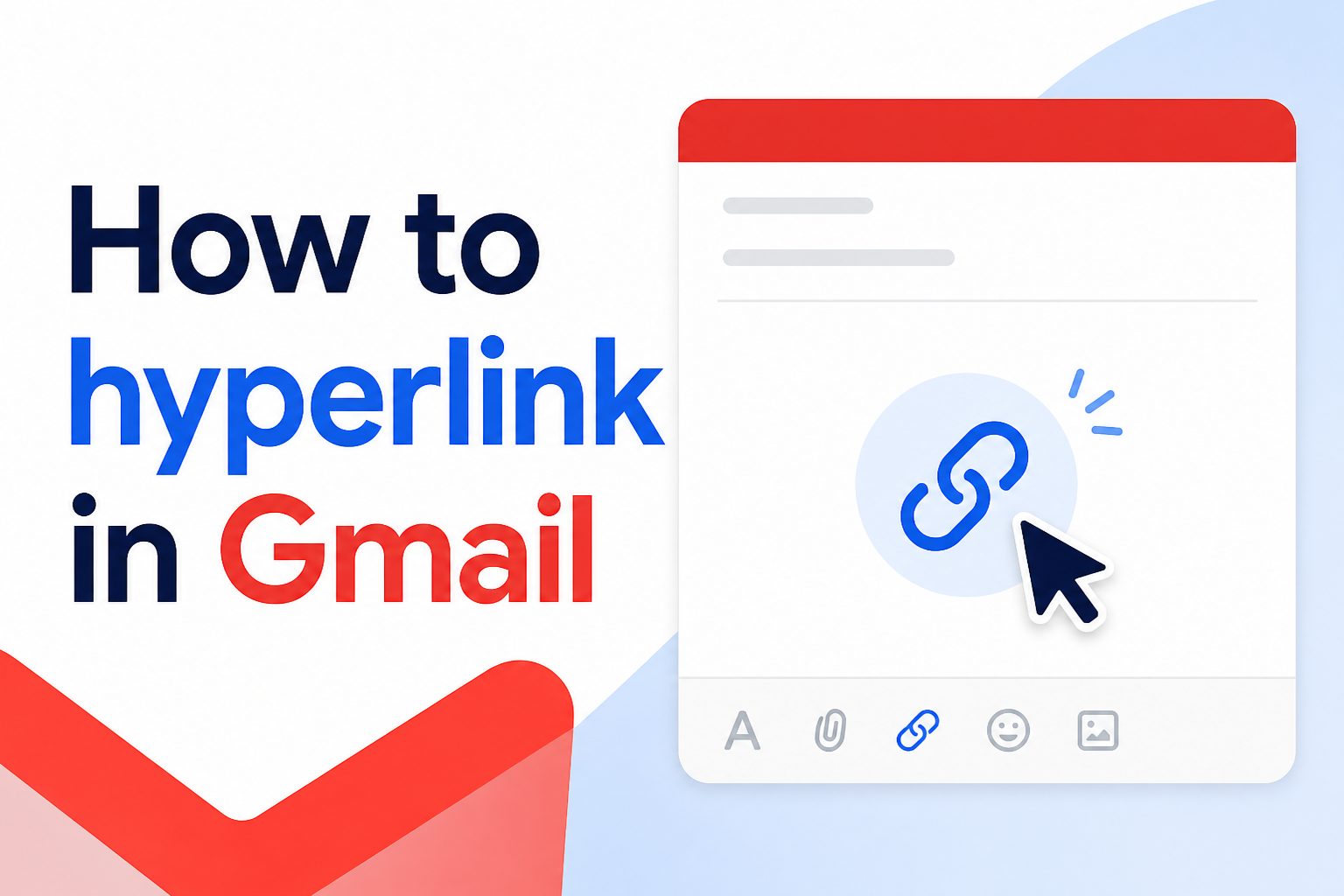
In the Gmail formatting toolbar, choose the link icon. It usually looks like a small chain. If you do not see the toolbar, look for the formatting options button near the bottom of the compose window. This opens the link editor where you can enter the destination.
5. Add The Destination
Paste or type the destination into the link field. This could be a web page, shared file, signup page, document, or email address. Always double-check the destination before inserting it, because one missing character can send readers to the wrong place or create a broken link.
6. Apply And Test The Link
After adding the destination, apply the link and review the email. Gmail may show the linked text in a different color or underline it. Before sending an important message, click or preview the link to confirm it opens the correct destination and behaves as expected.
Why Are Gmail Hyperlinks Useful?
1. They make emails easier to scan because readers see clear action phrases instead of long addresses.
2. They improve professionalism by making messages look cleaner, especially in business communication.
3. They guide the reader toward a specific action, such as reviewing a document or booking a meeting.
4. They reduce confusion by connecting helpful text directly to the correct destination.
5. They save space in mobile inboxes where long addresses can wrap awkwardly across several lines.
Best Practices For Gmail Links
- Use Descriptive Text: Choose link text that explains the destination clearly. Instead of writing a vague phrase, use wording that tells readers what will happen when they click. This builds trust and improves the flow of the email.
- Check Every Destination: Before sending, test the link or review the destination carefully. Broken links can waste time, create confusion, and make a professional email feel careless.
- Avoid Too Many Links: Use only the links the reader truly needs. Too many hyperlinks can make an email feel busy and can distract from the main message or call to action.
- Match The Link To The Context: Place the hyperlink where it naturally supports the sentence. A link should feel like part of the message, not an interruption or afterthought.
- Be Careful With Sensitive Files: When linking to documents or folders, confirm the sharing permissions. A well-written email still fails if the recipient cannot access the linked file.
- Use Clear Calls To Action: For important emails, make the next step obvious. Phrases like approve the draft, view the contract, or confirm your time work better than unclear generic wording.
What Gmail Link Mistakes Should You Avoid?
1. Linking The Wrong Text
One common mistake is linking a word that does not explain the destination. If the linked text says details but opens a payment page, the reader may feel misled. Make the visible wording match the purpose of the link as closely as possible.
2. Sending Broken Links
Broken hyperlinks usually happen because the destination was copied incorrectly, shortened poorly, or changed after the email was drafted. For important messages, test the link before sending. This is especially important for proposals, event invitations, shared documents, and customer-facing emails.
3. Forgetting Sharing Permissions
Many Gmail hyperlinks point to documents, spreadsheets, folders, or presentations. If those files are private, recipients may request access instead of viewing the content immediately. Always check permissions before sending links to shared work files.
4. Using Too Many Clickable Phrases
A message with excessive hyperlinks can look cluttered and unfocused. Readers may not know which link matters most. Keep your email focused by linking only the most important actions, references, or resources.
5. Hiding Important Destinations
Hyperlinks should make emails cleaner, but they should not hide suspicious or unexpected destinations. In professional communication, use honest, specific wording so readers feel comfortable clicking. Trust is especially important when linking to forms, downloads, or payment-related pages.
6. Ignoring Mobile Readability
Many people read Gmail on phones, so link text should be short enough to tap easily but clear enough to understand. Avoid tiny linked words or long linked sentences that are difficult to select, especially in emails meant for busy mobile readers.
Knowing how to hyperlink in Gmail helps you write cleaner, clearer, and more useful emails. A good hyperlink removes clutter, guides the reader, and connects your message to the right destination without forcing people to copy and paste long addresses.
The process is simple: write clear link text, select it, add the destination, apply the link, and test it before sending. The quality of the link text matters just as much as the technical step.
Use Gmail hyperlinks thoughtfully. Keep them relevant, check permissions, avoid overloading the message, and make every clickable phrase serve a real purpose.
FAQs About How To Hyperlink In Gmail
Can I Hyperlink Text In Gmail On Desktop?
Yes, Gmail on desktop lets you hyperlink text from the compose window. Type your message, highlight the text you want to link, select the link icon in the formatting toolbar, add the destination, and apply it. Always test important links before sending.
Can I Add A Hyperlink In The Gmail Mobile App?
Yes, but the steps can vary by device and app version. In many cases, you can select text and use formatting or paste a link directly. If the mobile app feels limited, create the email on desktop for better control.
How Do I Remove A Hyperlink In Gmail?
To remove a hyperlink, click or select the linked text while editing the email and choose the remove link option if available. You can also delete the linked text and type it again as plain text.
Why Is My Gmail Hyperlink Not Working?
A Gmail hyperlink may fail if the destination was entered incorrectly, the page no longer exists, or the linked file has restricted permissions. Check the address, confirm access settings, and send yourself a test email when the message is important.
Should I Use Raw Links Or Hyperlinked Text?
Hyperlinked text is usually better because it looks cleaner and explains the action more clearly. Raw links may be useful when the recipient needs to see or copy the exact address, but they often make emails look cluttered.
What Is The Best Link Text For Gmail?
The best link text is short, specific, and honest. It should describe the destination or action, such as view the report, join the meeting, or download the receipt. Avoid vague phrases when a clearer option is available.